

Solopreneur's Guide to ChatGPT in PowerPoint: Create Slides Faster With AI in 2026
What Every Solopreneur Needs to Know About ChatGPT in PowerPoint
OpenAI just put ChatGPT inside Microsoft PowerPoint - and for solopreneurs who spend hours wrestling with slides, this is one of the most practical AI moves of 2026. You can now describe what you want in plain English and watch a deck take shape, pulling content from your Gmail, Outlook, and SharePoint without copy-pasting a single thing.
Here is what this integration covers:
- Natural language slide creation from a text prompt
- Content pulled directly from Gmail and Outlook messages
- SharePoint document integration for team and client files
- Editing and restructuring existing slides with chat prompts
- Available on free tier and ChatGPT Business plans
Key considerations before you dive in:
- You need a Microsoft 365 account to access PowerPoint (ChatGPT handles the AI layer)
- The integration is currently in beta - expect rough edges on complex layouts
- Claude and Gemini already have similar capabilities in Google Slides
- Your data passes through OpenAI's systems when generating content
- The quality of output still depends heavily on how well you prompt it
After reading this guide, you will know exactly how to use ChatGPT in PowerPoint to cut your slide-building time in half, understand where it excels versus where you still need a human hand, and walk away with a workflow you can use on your next client presentation or sales deck.
AI Productivity Daily, a resource for solopreneurs and small business owners using AI to save time and grow, has tracked the rollout of AI-powered presentation tools since 2025. In this guide, I'll break down what ChatGPT in PowerPoint actually does, how it compares to competing tools, and the exact workflow to get useful output on the first try.

The Core Capabilities of ChatGPT in PowerPoint
The presentation software market has been disrupted in 2026. According to Engadget, OpenAI launched its ChatGPT integration natively inside Microsoft PowerPoint, allowing users to create and edit slides using natural language prompts. This follows Claude's earlier integration with Google Workspace tools and Gemini's long-standing presence inside Google Slides. OpenAI is now catching up on enterprise tooling - and solopreneurs are the immediate beneficiaries.
The numbers matter: PowerPoint has over a billion users worldwide, and a significant slice of them are freelancers, consultants, and small business owners who spend disproportionate time on slide decks relative to the value those decks create. That equation changes when an AI can do the first draft in 90 seconds.
What the Integration Actually Does
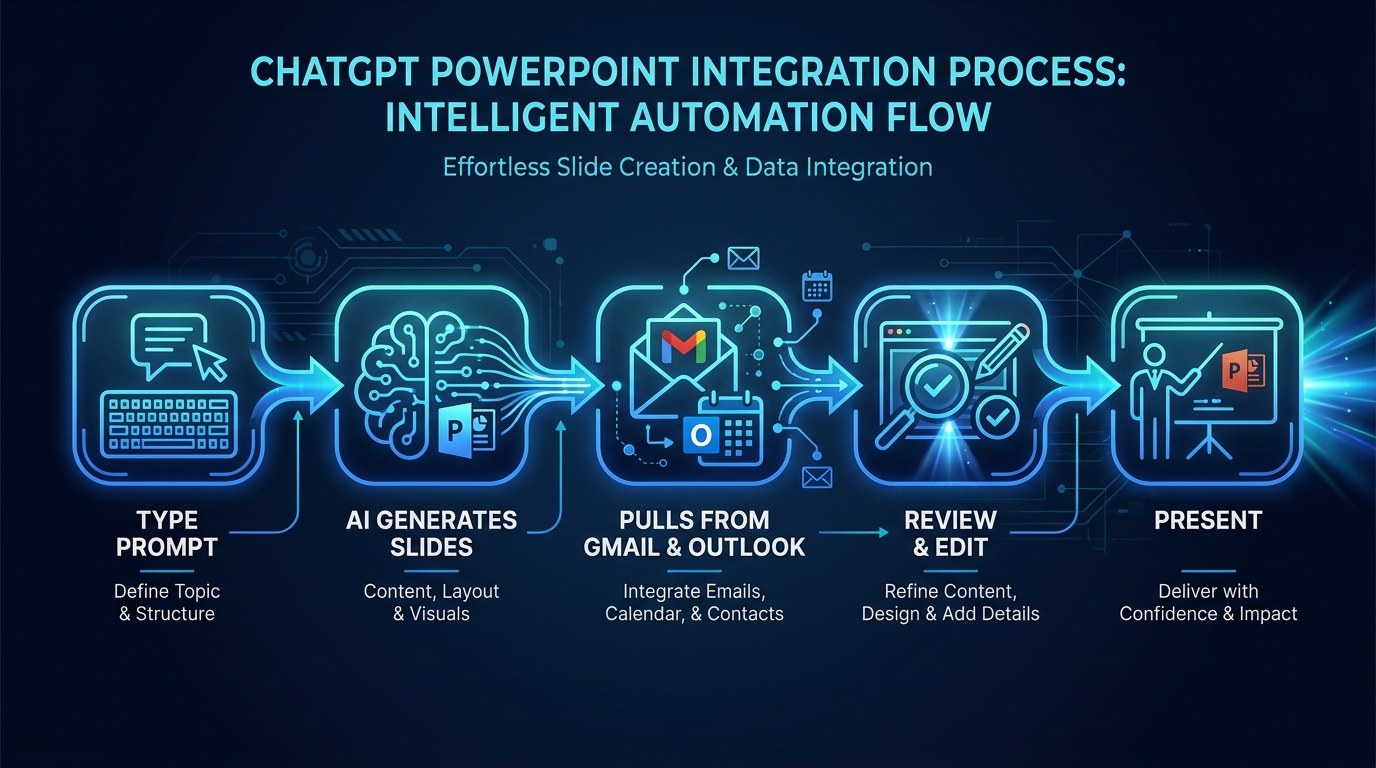
ChatGPT in PowerPoint is not a standalone tool - it lives inside the PowerPoint interface as a sidebar panel. You type a prompt, and it responds by generating or modifying slides directly in your deck. The key capabilities break down like this:
- Content generation from scratch: Describe your presentation topic and audience, and ChatGPT builds an outline and populates slides with copy and suggested layouts
- Data pull from connected sources: The integration can access Gmail threads, Outlook emails, and SharePoint folders - meaning you can say "create a summary slide from my last email thread with Acme Corp" and it will do it
- Edit mode: Highlight existing slides and ask ChatGPT to rewrite, simplify, expand, or reformat the content
- Structure suggestions: Ask for alternative slide orders, additional sections, or a tighter executive summary version of your existing deck
This last point is underrated. The ability to take a messy 20-slide deck and prompt "give me a 5-slide executive version" is the kind of time-save that solopreneurs feel immediately.
Who Gets Access and What It Costs
The beta is available to free tier ChatGPT users and ChatGPT Business subscribers - no extra cost on top of your existing plan. You do need a Microsoft 365 account with access to PowerPoint (the desktop or web version). Enterprise users with Microsoft Copilot licenses have a separate, more deeply integrated version, but for most solopreneurs, the standard ChatGPT integration is more than sufficient.
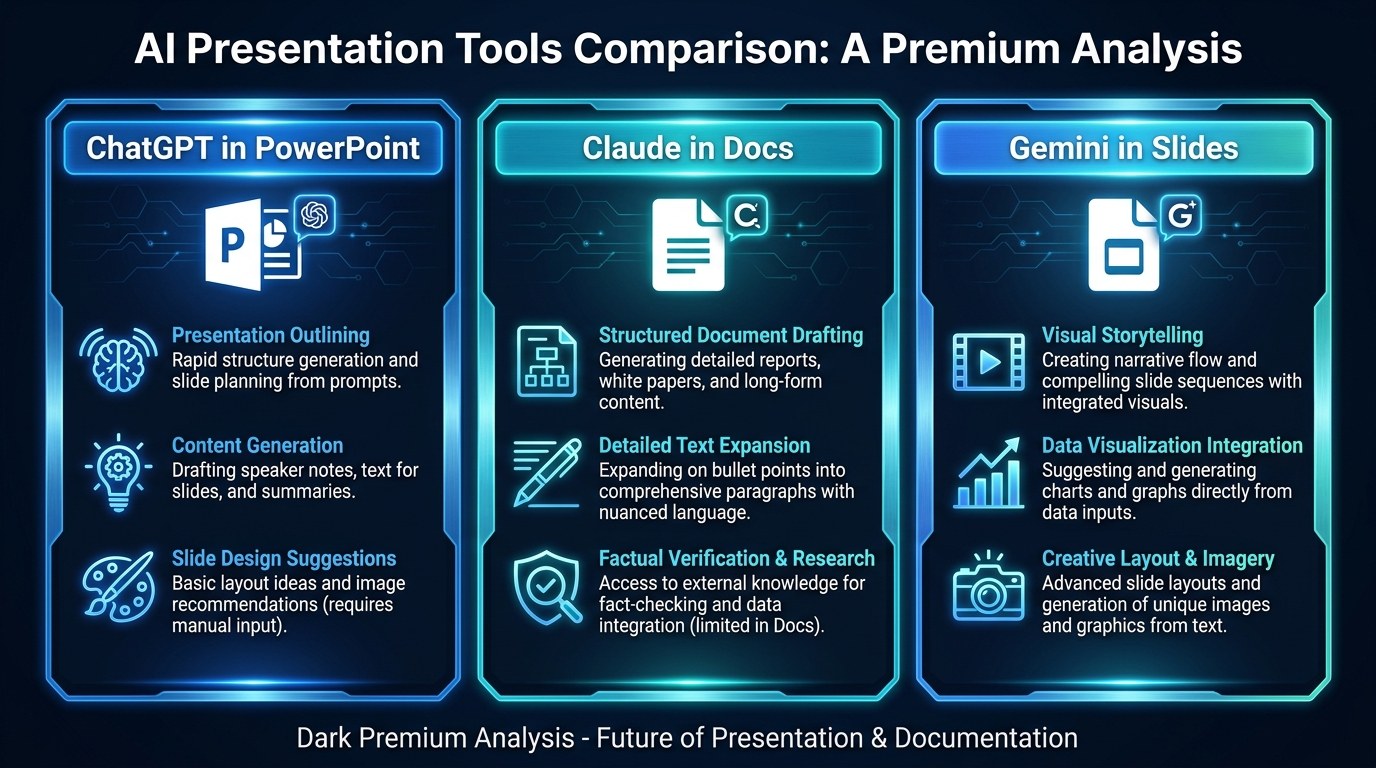
This matters because the competitive landscape in 2026 now looks like this: Claude integrates with Google Workspace, Gemini is native to Slides, and ChatGPT now covers PowerPoint. If you are already paying for any of these tools, you likely already have access to AI-assisted presentation creation.
How to Choose the Right AI Presentation Tool for Your Business
| Option | Key Quality | Strengths | Best For | |---|---|---|---| | ChatGPT in PowerPoint | Microsoft ecosystem | Gmail/Outlook pull, free tier access, massive slide template library | Solopreneurs already using Outlook or M365 | | Claude in Google Workspace | Document synthesis | Nuanced writing, long-form doc comprehension | Writers, consultants, Google Drive users | | Gemini in Google Slides | Native integration | Real-time Google Workspace data, smooth UI | Teams deep in the Google ecosystem | | Gamma | Dedicated slide AI | Fast deck generation, modern design templates | Quick client-facing decks from scratch | | Beautiful.ai | Design-led AI | Auto-design rules, polished visual output | Design-conscious solopreneurs without a designer |
The single most important factor right now: use the AI tool that lives inside the software you already use every day. Context switching between apps kills the productivity gains. If you live in Outlook, ChatGPT in PowerPoint is the obvious choice. If you live in Gmail and Docs, Gemini or Claude will feel more natural.
Getting Reliable Output - Practical Tips
The biggest mistake solopreneurs make with AI presentation tools is prompting too broadly. "Make me a sales deck" will produce something generic. Here is how to get useful output consistently:
- Give it a defined audience and outcome first: "Create a 7-slide pitch deck for a logistics startup CFO explaining why they should automate their AP process using AI." Audience + outcome + constraint = good first draft.
- Use the data pull feature deliberately: Connect your Gmail or Outlook before you start, then reference specific threads or email subjects in your prompt. The AI pulls actual content rather than inventing it.
- Limit your first prompt to structure only: Ask for the outline first ("give me 6 slide titles for this topic"), approve it, then ask it to populate each slide. Iterating on structure is faster than rewriting full slides.
- Treat the output as a draft, not a final: Even the best AI deck needs 10 to 15 minutes of human review for tone, accuracy, and layout. Budget for that - you are still saving 60 to 80 percent of the total time compared to building from scratch.
For prompt templates you can copy directly, visit aiproductivitydaily.com/free-tools - the AI Morning Brief includes weekly prompt packs for exactly these workflows.
Structured Prompting vs. Free-Form Prompting - Understanding the Difference
Structured prompting means providing a clear template: audience, goal, slide count, key points to hit, and tone. Free-form prompting means just describing what you want conversationally. Both work, but for presentations specifically, structured prompting produces more usable first drafts. Solopreneurs who are in a hurry tend to free-form prompt and then spend more time fixing the output than they saved generating it. The discipline of structured prompting takes 2 extra minutes upfront and saves 20 minutes in revision.
ChatGPT Presentation AI for Every Stage of Your Business
The way you use ChatGPT in PowerPoint should shift based on where your business is and what you are trying to accomplish:
- Early-stage / pre-revenue: Use it to build investor decks and pitch presentations quickly. Even a rough AI-generated draft gives you something to react to and refine, which is far faster than staring at a blank slide
- Active client work: Use it to turn client briefing documents and email threads into structured status updates and deliverable presentations, cutting the admin overhead of client communication
- Scaling / systems-building: Use it to create internal training decks, SOPs in slide format, and recurring report templates that team members or VAs can fill in each week
Beginner vs. Advanced Usage
The integration has different depth depending on how much you invest in learning it:
- Beginner (0 to 2 hours invested): Use the basic "create slides from prompt" feature. Expect decent structure, generic copy. Works well for internal decks and first drafts.
- Intermediate (2 to 10 hours): Learn how to connect Gmail and Outlook, use slide editing prompts to refine output, and build reusable prompt templates for your most common deck types - client reports, proposals, case studies.
- Advanced (10+ hours): Combine ChatGPT PowerPoint with your CRM data and analytics tools. Build a workflow where you export a weekly metrics CSV, prompt ChatGPT to interpret it, and auto-populate your client reporting deck. This is the level where AI genuinely replaces hours of work every week.
Customization and Workflow Integration
In 2026, the solopreneurs getting the most leverage from AI presentation tools are not just using them for one-off decks - they are building reusable systems. Three ways to adapt ChatGPT in PowerPoint to your workflow:
- Create a master prompt library: Write 5 to 8 prompts for your most common presentation types - proposal, case study, onboarding, weekly report - and save them in a note-taking app. Paste and adjust rather than starting from scratch each time.
- Use email thread pulls for client communications: Before any client check-in, run a prompt against your last two weeks of email with that client to auto-generate a progress summary slide. Takes 3 minutes instead of 30.
- Connect SharePoint for document-heavy work: If you work with contracts, SOWs, or research reports stored in SharePoint, the integration can surface and synthesize that content directly into slides without manual extraction.
Why This Matters for Solopreneurs Running Lean in 2026
Presentations are one of the most time-expensive tasks a solopreneur handles. A solid client proposal deck, a workshop slide set, a pitch to a potential partner - each one can eat 4 to 6 hours if you are doing it manually. Most solopreneurs either underinvest (and show up with messy slides that hurt their credibility) or overinvest (and spend time they do not have on visual polish that does not move the needle).
ChatGPT in PowerPoint does not solve the strategic thinking - you still have to know what to say. But it eliminates the mechanical labor of turning what you know into a structured, presentable format. For solopreneurs who are already thinking clearly about their business, that is the leverage that changes how much they can take on.
Key advantages of integrating ChatGPT into your presentation workflow:
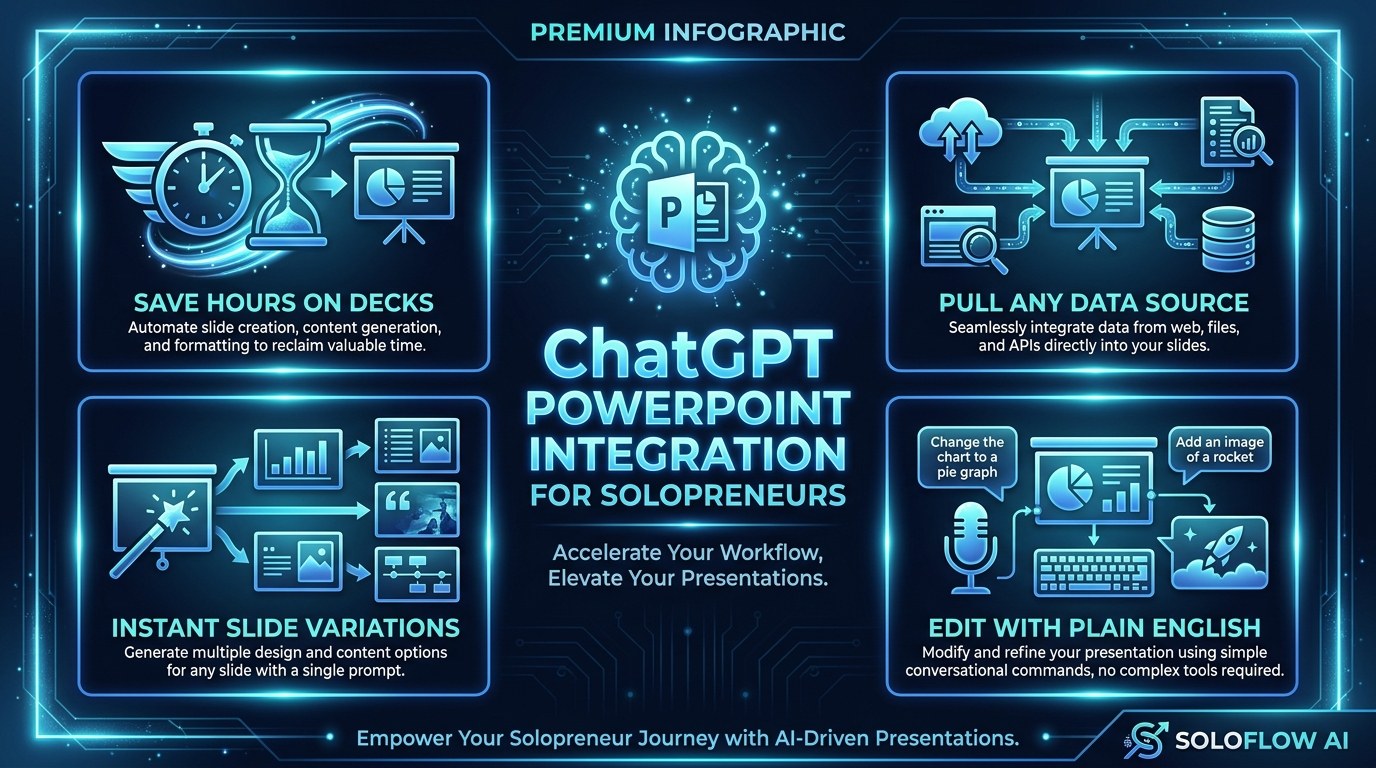
- Hours recovered per deck: Even a modest time savings of 2 to 3 hours per presentation adds up to a full day recovered per month for a solopreneur who presents regularly
- Better first drafts: AI-generated structure is often more logical than the free-form outline a time-pressured human produces, because it is drawing on patterns from thousands of successful presentations
- Data-connected accuracy: Pulling from Gmail and Outlook means your slides contain accurate specifics rather than approximations, reducing the revision cycle with clients
- Lower barrier to professionalism: Solopreneurs without design backgrounds can produce clean, structured decks that look intentional rather than cobbled together
Getting the Most Out of ChatGPT in PowerPoint
Once you have the basics working, these four habits will separate your output from a generic AI deck:
- Always set the audience in your first prompt: The AI writes differently for a CFO than for a small business owner. One sentence about who will see this deck changes the entire tone and vocabulary of the output.
- Use the "cut this to 3 slides" prompt on every draft: Your first AI draft will almost always be too long. Forcing a condensed version reveals which points actually matter - and the shorter version is usually more compelling.
- Ask for a visual suggestion for each slide: ChatGPT will suggest what type of visual - chart, icon, photo, diagram - would strengthen each slide. You still have to add the visual, but knowing what to look for saves time.
- Run the final deck through a one-sentence-per-slide test: Read only the headline of each slide in sequence. If the story makes sense without the body copy, your deck will land. If it does not, ask ChatGPT to rewrite the headlines so they carry the narrative on their own.
See the full prompt library for these workflows at aiproductivitydaily.com/free-tools.
Frequently Asked Questions About ChatGPT in PowerPoint
Do I need to pay for ChatGPT Plus to use it in PowerPoint?
No - the integration is available to free tier ChatGPT users as well as ChatGPT Business subscribers. You do need a Microsoft 365 account with access to PowerPoint, but you do not need a paid ChatGPT plan specifically. Microsoft Copilot users get a deeper, enterprise-grade version of the integration, but for most solopreneurs, the standard ChatGPT integration covers every core use case.
How does ChatGPT pull content from Gmail and Outlook - is my data safe?
When you authorize the integration, ChatGPT requests read access to your connected accounts. Your email content is sent to OpenAI's servers to generate the slide content. OpenAI's standard data policy applies - business account users typically have stronger data retention controls than free tier users. If you are working with sensitive client information, review OpenAI's enterprise data policy before connecting email accounts. For most solopreneur use cases such as client proposals, internal decks, and sales pitches, the risk profile is low and the time savings are high.
Can I use ChatGPT in PowerPoint if I normally work in Google Slides?
You can, but the workflow friction is real. You would need to export your Google Slides deck to PowerPoint format, use ChatGPT to edit it, then convert back - which often causes formatting issues. If you primarily use Google Slides, you are better served by Claude's Google Workspace integration or Gemini, which work natively inside your existing environment. Use ChatGPT in PowerPoint when you are building a deck in PowerPoint from scratch or editing a client's file that has been shared with you in PowerPoint format.
Conclusion
The presentation AI race in 2026 is not about who has the best model - it is about who has the best integration with the tools you already use. ChatGPT in PowerPoint joining Claude in Workspace and Gemini in Slides means that every major productivity ecosystem now has native AI presentation assistance. For solopreneurs, the practical takeaway is simple: stop building decks from scratch. Use the AI tool that lives in your ecosystem, give it a structured prompt, connect your email data, and spend your time on the 20 percent that still requires a human - strategic thinking, relationship nuance, and the final visual pass that makes a deck feel like yours.
Start with the free AI Morning Brief at aiproductivitydaily.com/free-tools - a daily digest of what's moving in AI, filtered for solopreneurs. This week's edition includes the prompt templates referenced in this guide.
One AI workflow, every weekday.
Tutorials, tool reviews, and automation playbooks for solopreneurs running on AI. Short, useful, and free. Unsubscribe anytime.
No pitch. No upsell. One quick AI workflow per weekday.