

The Solopreneur's Guide to Human-in-the-Loop Automation: Let AI Do the Work Without Letting It Hit Send in 2026
What Every Solopreneur Needs to Know About Human-in-the-Loop Automation
Your automations used to fetch things. Now they send things. That is the whole shift of 2026 — the AI in your workflow stopped summarizing and started acting, and somewhere in the last few months you quietly handed a tool the ability to email a client without you reading it first.
Human-in-the-loop automation is the fix that costs you almost nothing. You keep every AI step that drafts, sorts, researches, and prepares. You add one deliberate pause in front of every step that is irreversible.
Where the pause belongs:
- Anything a client sees — emails, replies, proposals, invoices
- Anything public — social posts, published pages, review responses
- Anything that moves money — payments, refunds, subscription changes
- Anything that deletes — files, records, contacts, calendar events
- Anything legal or contractual — quotes, scopes, signed terms
- Anything the AI is guessing at — low-confidence classifications and unfamiliar requests
What you have to weigh before you add a gate:
- How bad is the worst version of this going wrong
- How often does the step actually run
- Can you undo it, and how fast
- How much delay does a pause add to the customer's experience
- Whether you will actually review it, or rubber-stamp it at 11pm
- Whether the automation fails safely when you do not respond
Get this right and you get the real prize: AI doing eighty percent of the work in the background while nothing leaves your business that you did not personally look at. That is not a compromise between speed and control. It is how the fast operators are running.
AI Productivity Daily, a resource for solopreneurs and small business owners using AI to save time and grow, has tested approval-gated automations across email, invoicing, and client onboarding for the last year. In this guide, I'll show you exactly where to put the gates, how to build them so you actually clear them in under a minute, and which steps genuinely don't need one.

The Core Patterns of Approval-Gated Automation
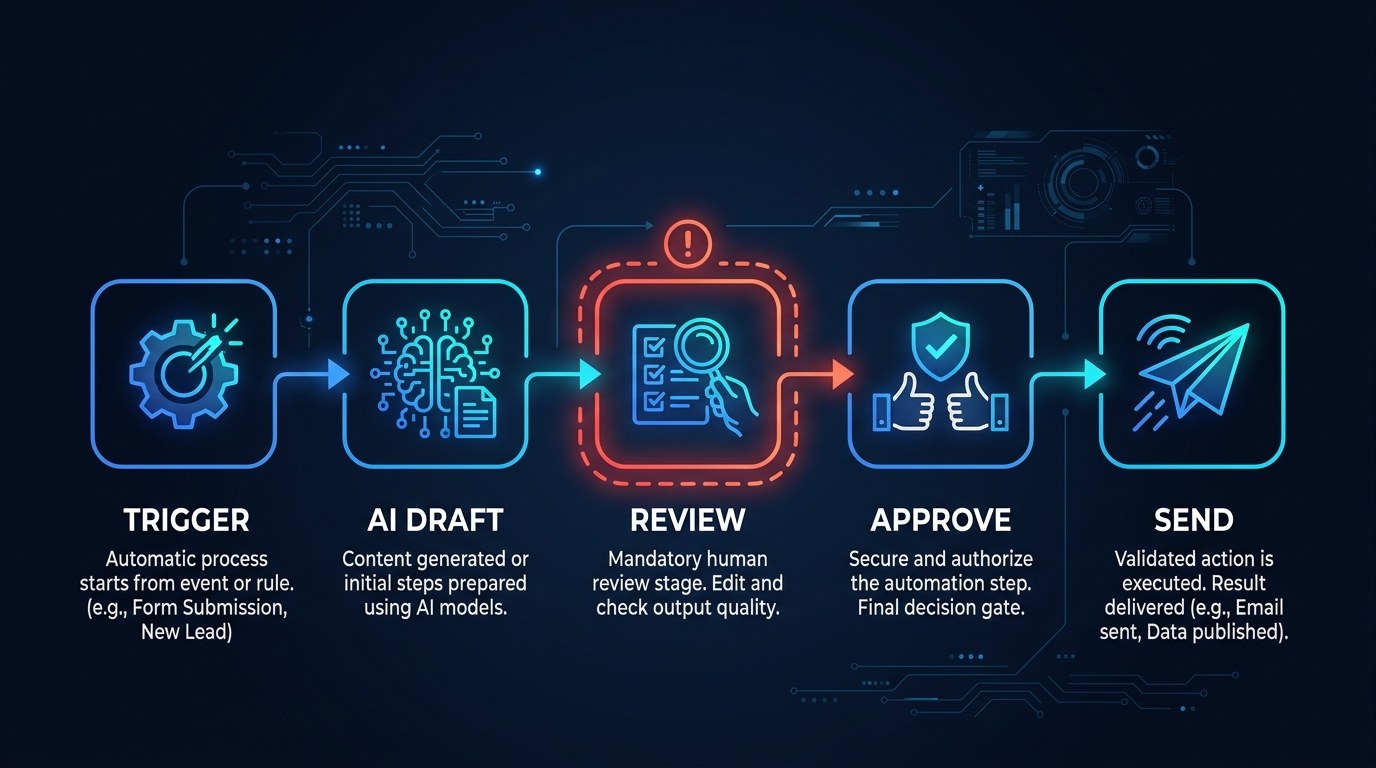
The automation tools most solopreneurs use — Zapier, Make, n8n, and the newer agent platforms — all shipped some version of an approval step between 2025 and 2026. The pattern that emerged is boring and it works: the automation runs to the edge of the irreversible action, stops, and waits for a human yes.
The reason this matters more in 2026 than it did two years ago is confidence calibration. A summarizer that gets something wrong produces a bad paragraph you ignore. An agent that gets something wrong produces a sent email you cannot unsend. Industry incident write-ups through 2026 keep landing on the same root cause: the model was not unusually wrong, it was unusually empowered. The gate exists because the blast radius changed, not because AI is unreliable.
The Draft-and-Hold Pattern
This is the one you will use most. The automation does all the work — pulls the context, writes the reply, formats the invoice, picks the recipient — and then parks the finished thing somewhere you already look instead of sending it.
What a good draft-and-hold step includes:
- The finished artifact, not a summary of it. You should be approving the actual email body, not a description of the email body.
- The context that produced it. One line on what triggered it and what the AI read, so you can spot a bad input fast.
- A confidence or risk flag. Have the AI label its own uncertainty; you will learn to skim the confident ones and read the flagged ones.
- A one-tap action. Approve, edit, or kill — from wherever the draft landed, without opening four tabs.
In practice: your email automation writes into drafts instead of sent, and your invoice automation creates the invoice in draft status instead of emailing it. The AI still did the work — you just moved the last inch back to yourself.
The Threshold Gate Pattern
Not every action deserves the same friction, and treating them identically is how people end up approving forty things a day and reading none of them. The threshold gate sends low-stakes actions straight through and only stops the ones that cross a line you set.
The lines worth setting are almost always about money, novelty, or tone. An invoice under your normal project size goes out; one above it waits. A reply on an existing client thread goes out; first contact with a new lead waits. Anything flagged as a complaint or refund request waits. You are not reviewing volume — you are reviewing exceptions.
The practical payoff is a review queue small enough to stay real. Ten automations with blanket gates produce a queue you stop reading by Wednesday; the same ten with thresholds produce three or four decisions a day, each of which genuinely deserved you.
How to Choose the Right Level of Automation for Each Step
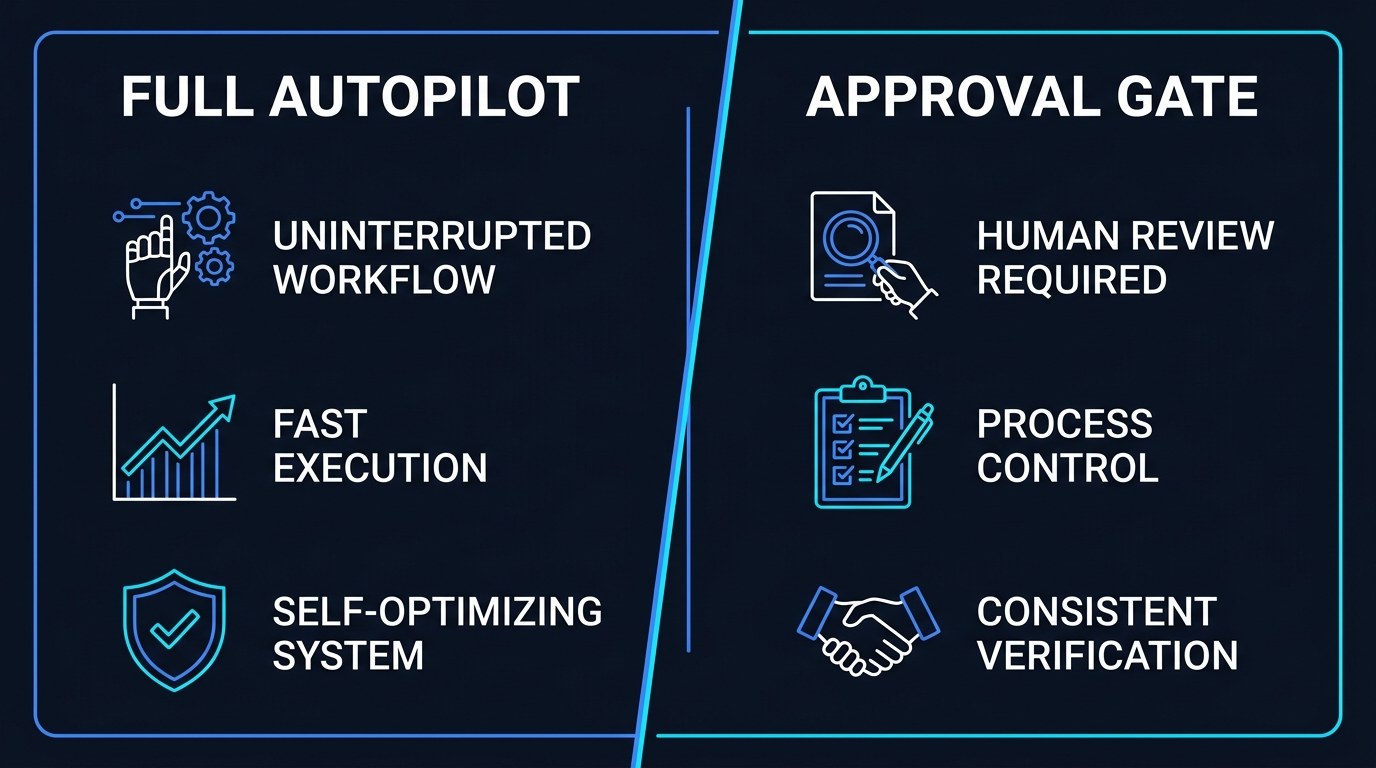
Run every step in your workflow through one question: if this fires wrong at 3am, what does Monday look like? Then match it to the table.
| Automation level | What the AI does | Your involvement | Best for | |---|---|---|---| | Full autopilot | Runs and completes the action alone | None; you audit the log weekly | Internal sorting, tagging, filing, data sync, backups | | Notify-after | Acts, then tells you what it did | Read-only, with an undo window | Low-stakes replies, calendar holds, CRM updates | | Threshold gate | Acts below a limit, pauses above it | Review only the exceptions | Invoicing, quotes, refunds, new-lead outreach | | Draft-and-hold | Prepares everything, sends nothing | Approve every item before it ships | Client email, proposals, public posts, contracts | | Assist-only | Suggests options, never acts | You do the action yourself | Pricing decisions, scope changes, hiring, legal |
If you only change one thing after reading this, make it invoicing and client email. Those two are where solopreneurs get burned most, and they are both squarely draft-and-hold: the AI can write a better invoice reminder than you will at 6pm on a Friday, but the cost of it going to the wrong client with the wrong number is a relationship, not a typo. Everything above draft-and-hold on that table is you keeping speed. Draft-and-hold is you keeping your reputation.
"Won't All These Approvals Just Become the New Busywork?" — Practical Tips
That is the real risk, and it is worth designing against from day one.
- Cap your review queue at 10 items a day. If you cross that for three days running, you have too many gates, not too little time. Promote the safest third to notify-after.
- Put every approval in one place. One inbox label, one channel, one dashboard view. Approvals scattered across five tools get skipped, and a skipped gate is worse than no gate because you think you are covered.
- Give yourself a 30-second review standard. If a draft takes longer than 30 seconds to judge, the automation isn't giving you enough context — fix the prompt, not your attention span.
- Set a fail-safe on every gate. Decide what happens if you don't respond in 24 hours. For client email, default to hold. For internal tasks, default to send. Never leave it undefined, or you'll find a three-week-old unanswered lead sitting in a queue.
If you're still building out the underlying workflows these gates sit on top of, start with the free AI tools and templates and add the approval layer once the automation itself is running clean.
Approval Gates vs. Testing — Understanding the Difference
These solve different problems and people routinely substitute one for the other. Testing tells you whether an automation works on the cases you thought of. An approval gate protects you on the cases you didn't. You can test an email automation against twenty sample threads and still meet one on day forty that reads like a complaint and isn't.
Which one you lean on depends on how predictable your inputs are. If the automation processes structured data you control — your own records, your own fields — invest in testing and run it on autopilot. If it processes things other people wrote, in their words, on their worst day, you cannot test your way to safe. Gate it.
Approval Workflows for Every Stage of Your Business
- Just starting out, under ten clients. Gate everything client-facing. The volume is low enough that reviewing every outbound message costs you fifteen minutes a day, and at this stage a single bad automated email is a meaningful share of your reputation.
- Established, steady book of business. Move to threshold gates. You know what a normal invoice, a normal reply, and a normal lead look like — encode those as your thresholds and review only what falls outside.
- Scaling with contractors or a small team. Route approvals by role rather than to yourself by default. Your VA clears routine client replies; anything touching money, contracts, or an unhappy customer routes to you.
Beginner vs. Advanced Options
You do not need a new platform to start — you need a place where drafts land and a habit of clearing it.
- Beginner: native draft states. Gmail drafts, invoice-draft status in your billing tool, scheduled-not-published in your social tool. Costs nothing, works today, and covers the majority of the real risk. Right for anyone running fewer than five automations.
- Intermediate: built-in approval steps. The wait-for-approval and human-input nodes in mainstream automation platforms, which pause a run and resume it on your response. The meaningful upgrade is that the automation continues after you approve instead of you finishing the job by hand. Worth it once you're running enough automations that manual completion is the bottleneck.
- Advanced: a single approval dashboard. One view that aggregates pending actions across every automation, with risk flags, one-tap decisions, and timeout rules. Justifies the extra setup when you're past ten live automations or you're delegating approvals to someone else, because that's the point where scattered gates start getting silently skipped.
Customization and Workflow Integration
The direction of travel in 2026 is that approval steps are becoming a first-class part of agent design rather than a bolt-on — newer agent frameworks ship with permission scopes and confirmation prompts built in.
Three ways to adapt gates to how you actually work:
- Match the channel to your habits. If you live in your phone, approvals belong in a messaging app, not an email digest you read on a laptop.
- Let the AI pre-sort the queue. Have it order pending items by risk so the thing most likely to hurt you is the first one you see.
- Log every approval and rejection. Your rejections are training data. After a month, the patterns in what you kill will tell you exactly which prompt to fix.
Why This Matters for Solopreneurs Running Lean in 2026
You're hesitant because the whole appeal of automation was not being in the loop, and this sounds like putting yourself back in it. It isn't. Every minute the AI spends researching, drafting, formatting, and deciding is still saved. What you're keeping is the last ten seconds — the part where a human looks at something before it leaves the building. That's the cheapest insurance in your business.
What you actually get from running this way:
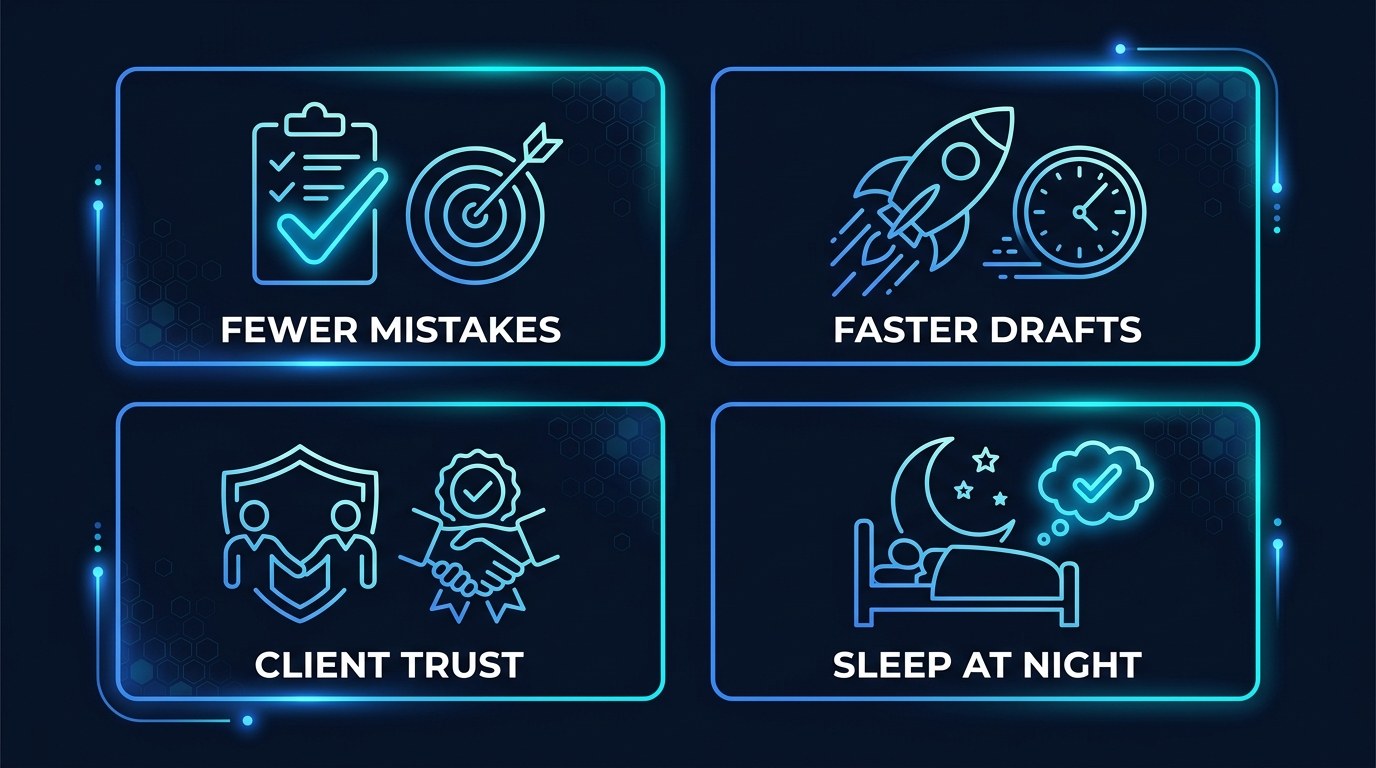
- Speed without exposure. You still get the draft in thirty seconds; you just decide whether it ships.
- A real audit trail. Every approval is a record of what you agreed to, which matters the first time a client asks what you sent them and when.
- Faster prompt improvement. Reviewing output is how you find out what your automation gets wrong, and you cannot find that out from a sent folder.
- Permission to automate more aggressively. Once gates exist, you'll let AI touch workflows you'd never have handed it unsupervised — which is where the compounding time savings actually live.
Getting the Most Out of Approval-Gated Automation
- Review in batches, not in real time. Two fixed windows a day beats reacting to every notification, and it keeps the gate from becoming a new interruption habit.
- Have the AI explain its choice in one line. "Flagged as refund request based on paragraph two" turns a 40-second read into a 5-second one.
- Kill gates that you've approved 50 times unchanged. That step has earned autopilot. Gates you never reject are just delay.
- Re-audit every quarter. Automations drift as your business changes, and a gate you set when you had four clients may be strangling a workflow that now runs twelve times a day.
Once your gates are stable, the next lever is tightening the drafts themselves — better prompt structure means fewer rejections and faster reviews.
Frequently Asked Questions About Human-in-the-Loop Automation
How do I decide which steps actually need approval?
Ask whether the action is reversible and whether someone outside your business sees it. If it's irreversible or externally visible, gate it. Everything internal and undoable — tagging, filing, syncing, summarizing — can run on autopilot without you thinking about it again.
What happens if I don't respond to an approval request in time?
Every gate needs a defined timeout behavior, and the right default depends on the risk:
- Client-facing sends: hold indefinitely and escalate to you after 24 hours
- Internal actions: auto-proceed after a set window, since the downside is small
- Money movement: always hold, never auto-proceed, no exceptions
- Time-sensitive replies: hold, but send the requester an automated acknowledgment so nobody is left waiting in silence
Can I gate some parts of a workflow and not others?
Yes, and you should — that's the whole point. A single client-onboarding automation might auto-create the folder, auto-sync the CRM record, draft-and-hold the welcome email, and assist-only on the pricing confirmation. Set the level per step, not per workflow. The one caveat: if a later step depends on an earlier gated step, make sure the automation pauses cleanly rather than running ahead with a placeholder.
Conclusion
The operators who will look competent in 2026 aren't the ones who automated the most. They're the ones who automated aggressively and still never sent anything they hadn't seen. That combination used to require a team. Now it requires one thoughtful pause, placed where it counts, in workflows that otherwise run themselves.
Start with the free AI Morning Brief at aiproductivitydaily.com/free-tools — a daily digest of what's moving in AI, filtered for solopreneurs.
One AI workflow, every weekday.
Tutorials, tool reviews, and automation playbooks for solopreneurs running on AI. Short, useful, and free. Unsubscribe anytime.
No pitch. No upsell. One quick AI workflow per weekday.