
The Solopreneur's Guide to Automation Monitoring: Catch Broken AI Workflows Before Your Clients Do in 2026
What Every Solopreneur Needs to Know About Automation Monitoring
You built the workflow, tested it once, and moved on. Three weeks later a lead form quietly stopped feeding your CRM, and nobody told you. That is the real risk of automation: it fails silently, and you are the only person who can notice.
In this guide, you will cover:
- Where AI workflows actually break
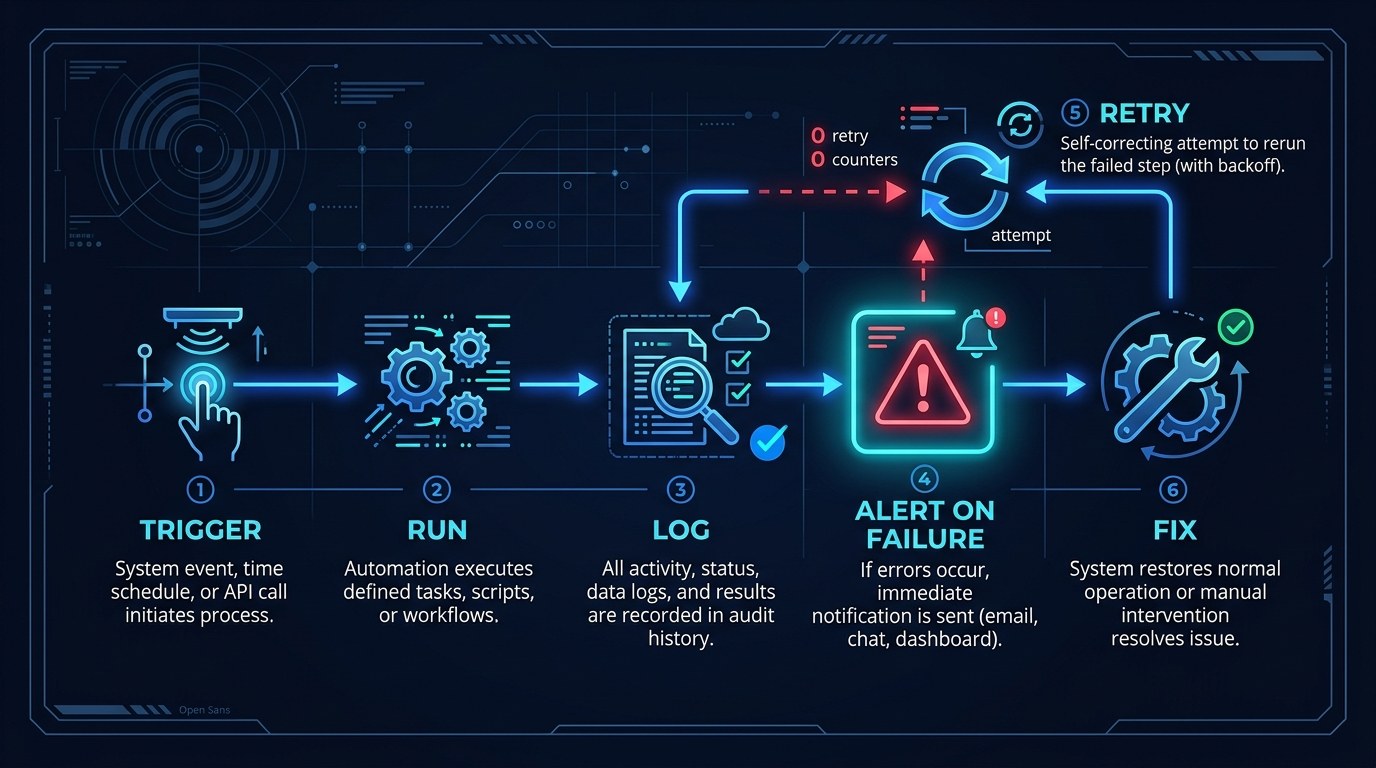
- Logging every run in one place
- Failure alerts that reach your phone
- Retry rules for temporary errors
- Fallback paths for critical steps
- A weekly five-minute health check
Core considerations to weigh as you set this up:
- Which workflows touch revenue or client trust
- How much noise you can tolerate in alerts
- What your platform already logs for free
- How fast a failure needs a human response
- Whether a step is safe to retry twice
By the end, you will have a lightweight monitoring setup that protects the automations that matter most, without turning you into an IT department.
AI Productivity Daily, a resource for solopreneurs and small business owners using AI to save time and grow, has covered automation across Zapier, Make, and n8n. In this guide, I'll show you the monitoring layer most tutorials skip.
The Main Failure Points of AI Automation Workflows
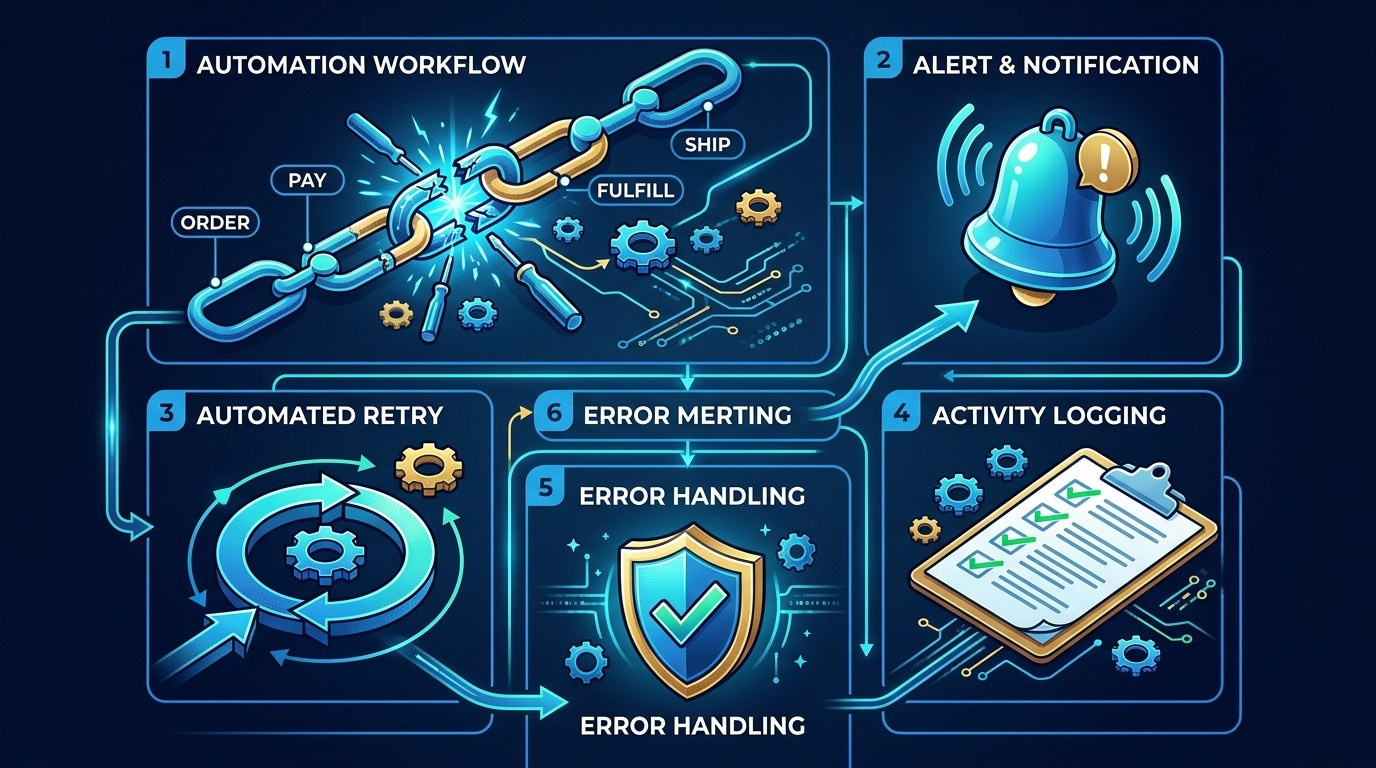
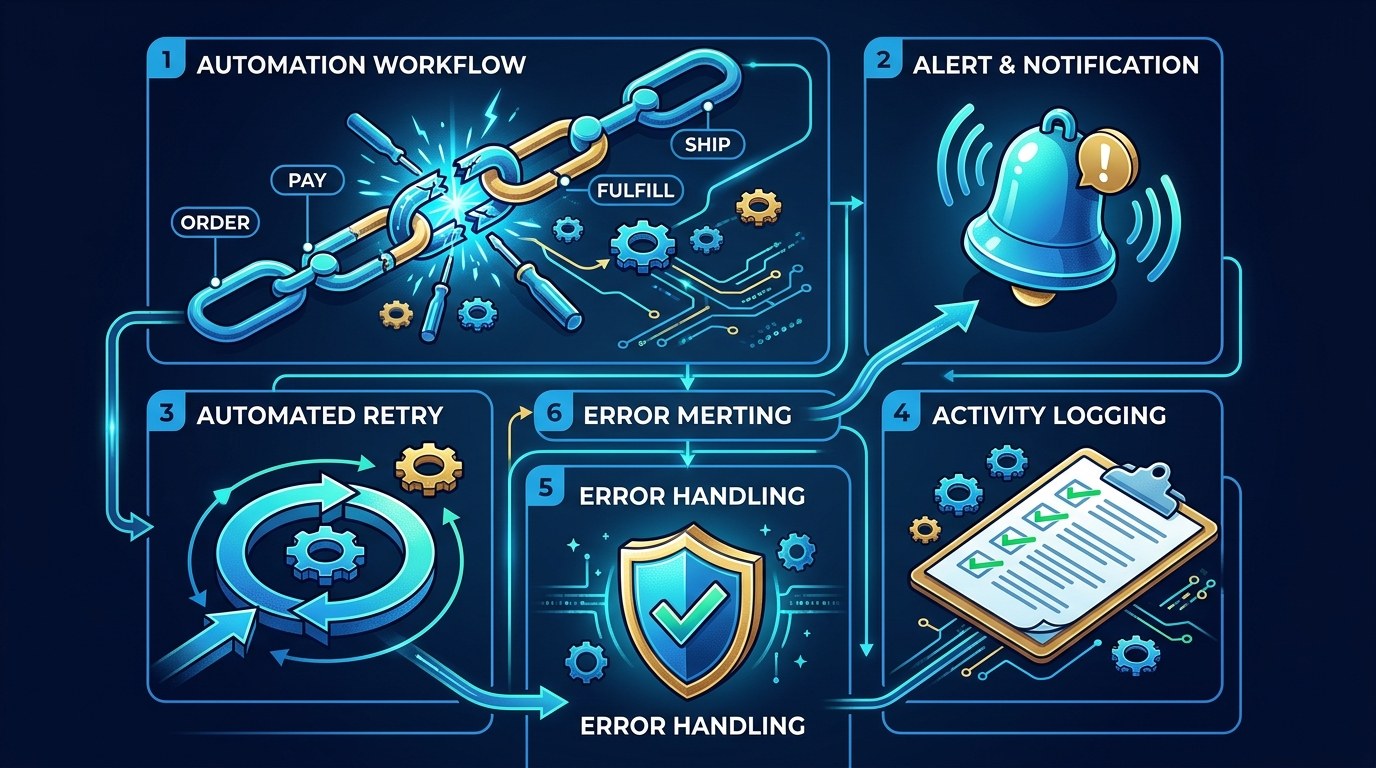
By 2026, most solo operators run at least a few automations: lead capture, invoice reminders, content repurposing, meeting follow-ups. Each one is a chain, and a chain breaks at its weakest link. Platform status pages and community forums for Zapier, Make, and n8n regularly show the same culprits: expired logins, changed fields, rate limits, and AI steps that return something unexpected.
Connection and Authentication Failures
This is the most common and the most boring cause. An app token expires, a password changes, or a permission gets revoked, and every run after that fails.
- Expired tokens: Many connections need re-authorizing every so often.
- Changed permissions: A new admin setting can block a previously working app.
- Deleted resources: A renamed spreadsheet or removed folder breaks the step that points to it.
- Plan limits: Hitting a monthly task cap pauses everything.
The practical lesson: treat connections like a car's registration. Check them on a schedule, not when something goes wrong.
AI Step Failures
AI steps add a new kind of failure. The workflow runs fine, but the output is wrong, empty, or in the wrong format.
AI models can time out, hit rate limits, or return text when your next step expects structured data. A recent trend in 2026 is platforms adding built-in error routes for AI steps, which makes it easier to catch these cases.
Output that is quietly wrong is harder to catch than output that errors. For anything client-facing, pair monitoring with a review step, as covered in our guide to human-in-the-loop automation.
A simple guardrail helps here: add a check step after every AI action. If the output is empty, shorter than expected, or missing a required field, route the run to an error path instead of sending it onward. This takes about ten minutes to build and prevents the most embarrassing failures, like a blank email going to a prospect or a half-written summary landing in a client folder.
Rate limits deserve a mention too. When several runs fire at once, an AI provider may reject some of them. Spacing runs out, or letting your platform queue them, turns a sudden burst of errors into a smooth line of successful runs.
How to Choose the Right Monitoring Level for Your Workflows
Not every automation deserves the same attention. Match the safety net to the stakes.
| Workflow Type | Failure Cost | Monitoring Level | Best For | |---|---|---|---| | Lead capture to CRM | High (lost revenue) | Alert on every failure plus daily count check | Forms, DMs, booking tools | | Client emails and invoices | High (trust) | Alert plus human approval step | Follow-ups, reminders | | Content repurposing | Medium | Weekly log review | Social, newsletters | | Internal notes and summaries | Low | Platform default email alerts | Meeting notes, digests | | Data backups and syncs | Medium | Alert on failure plus monthly spot check | Sheets, files, exports |
Expert tip: start with the lead capture workflow. It is the one where a silent failure costs real money, and fixing it first builds the habit for the rest.
"How Do I Know It Broke?" — Practical Tips
Your goal is to hear about failures in minutes, not weeks.
- Turn on your platform's failure notifications and route them to an email you actually read.
- Add a second alert channel, like a Slack or text message, for revenue-critical workflows.
- Log every run to one Google Sheet with a timestamp, status, and a short note.
- Set a "heartbeat" check: if a workflow that normally runs daily has zero runs in 48 hours, flag it.
For deeper platform setup, see our Make.com automation guide and the free AI Productivity tools.
Alerts vs. Logs — Understanding the Difference
An alert tells you something just broke. A log tells you what happened over time. You need both: alerts for speed, logs for diagnosis.
Choose alerts for anything that needs action today. Choose logs for patterns, like a step that fails every Monday morning when your inbox is busiest.
Monitoring for Every Stage of Your Business
- Just starting out: You have two or three automations. Use built-in email alerts and check them weekly.
- Growing with clients: Automations now touch client work. Add a shared run log and a backup alert channel.
- Running lean with help: If you have a virtual assistant, give them the log and a short checklist so monitoring is not only your job.
Beginner vs. Advanced Options
Pick the tier that fits your setup:
- Beginner (free): Built-in platform failure emails plus a manual Monday check.
- Intermediate (low cost): A run-log spreadsheet, a chat alert, and automatic retries on temporary errors.
- Advanced (self-hosted or paid): A dedicated error workflow in n8n or Make that logs, alerts, and attempts a fix. Our n8n guide is a good starting point.
Customization and Workflow Integration
In 2026, error handling is increasingly a first-class feature rather than an afterthought. You can tailor it three ways:
- Route alerts by severity so only urgent failures ping your phone
- Add a "fallback" branch that sends the lead to a simple inbox if the CRM step fails
- Include the failed record in the alert so you can fix it in one click
Why This Matters for Solopreneurs Running Lean in 2026
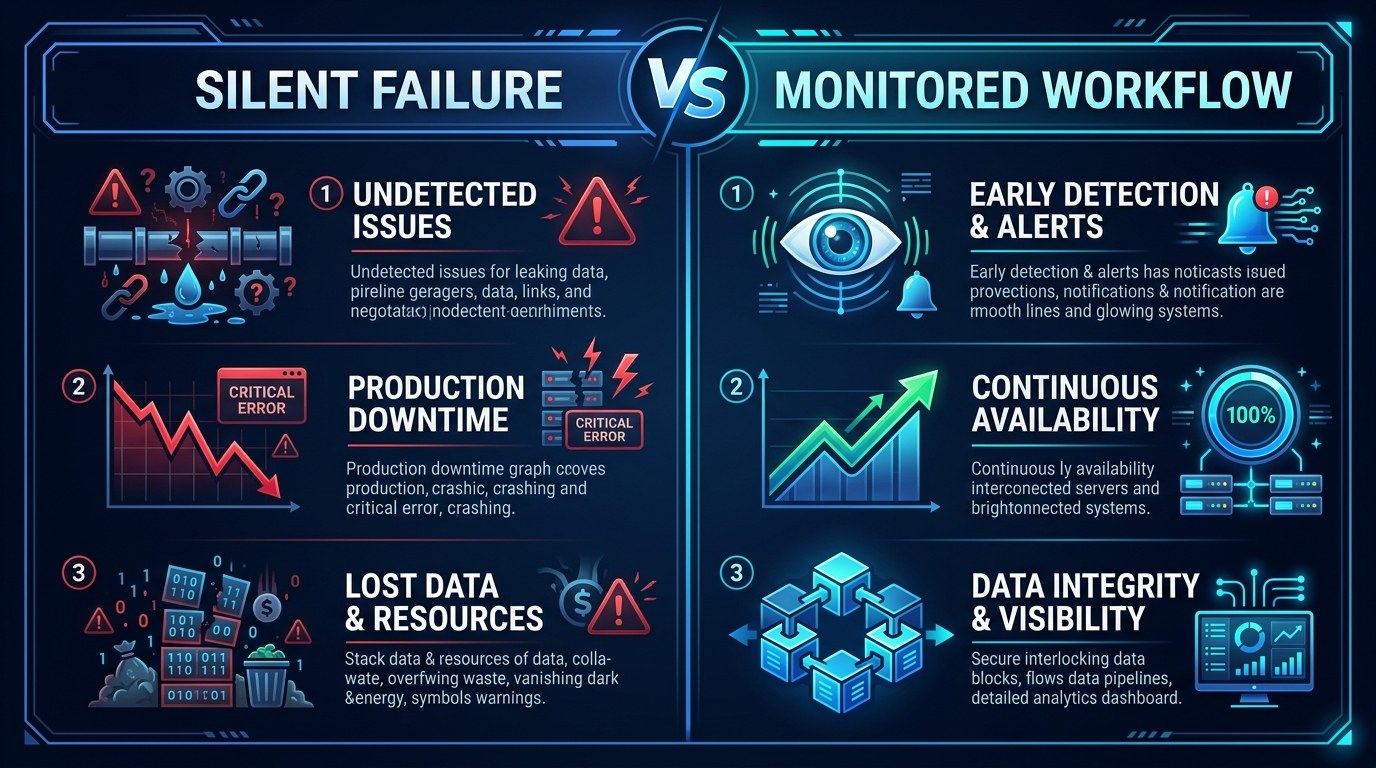
It is easy to feel that monitoring is extra work you do not have time for. But the opposite is true: a small safety net saves the hours you would spend untangling a month of missed leads. Nobody else is watching your workflows, so build something that watches them for you.
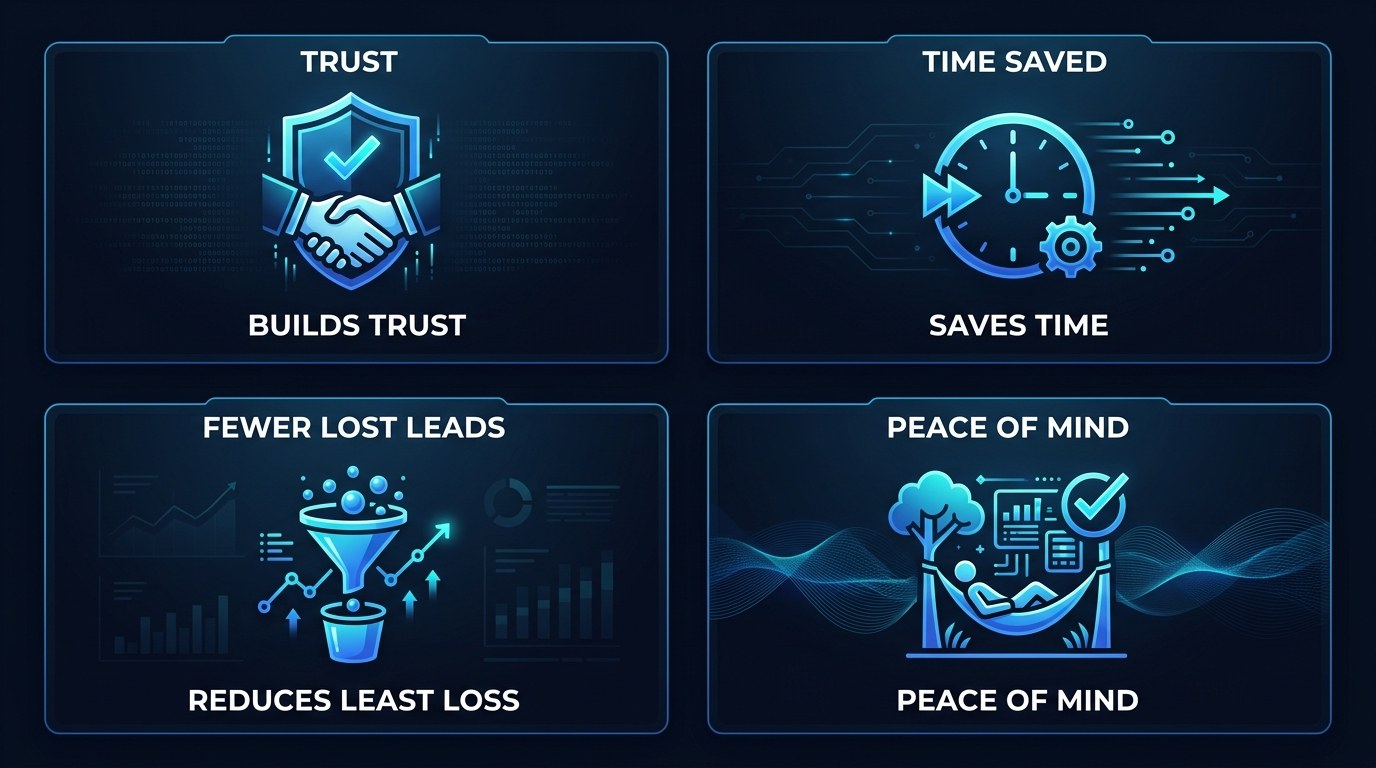
Four things you gain:
- Trust: You know your systems are actually running.
- Time saved: Problems get fixed in minutes, not discovered in weeks.
- Fewer lost leads: Critical paths have a fallback.
- Peace of mind: You stop wondering whether something quietly broke.
Getting the Most Out of Your Monitoring Setup
- Name workflows clearly. "Lead form to CRM v2" beats "Scenario 14" when an alert lands at 7 AM.
- Limit retries to two or three attempts. Retrying forever can duplicate emails or charges.
- Test your alert. Break a workflow on purpose once to confirm the notification really arrives.
- Review monthly. Delete automations you no longer use. Fewer workflows means fewer failures. For more on keeping a human in the loop, revisit our approval-step guide.
Frequently Asked Questions About Automation Monitoring
How often should I check my automations?
Check revenue-critical workflows through alerts, so you hear immediately. For everything else, a five-minute weekly review of your run log is enough for most solopreneurs.
What should I do when a workflow fails?
Follow a simple routine:
- Read the error message and note which step failed
- Check whether the connection or login expired
- Re-run the failed record once the cause is fixed
- Write the cause in your log so you can spot patterns
Can I rely only on my platform's built-in alerts?
Built-in alerts are a solid start, but they usually only catch hard errors, not workflows that silently stop running. Add a heartbeat check for anything important, and expect to adjust it as your volume grows.
Conclusion
Automation is supposed to give you time back, not a new thing to worry about. With a log, an alert, and a simple retry rule, your workflows become something you can trust, and trust is what lets you keep building.
Start with the free AI Morning Brief at aiproductivitydaily.com/free-tools — a daily digest of what's moving in AI, filtered for solopreneurs.
One AI workflow, every weekday.
Tutorials, tool reviews, and automation playbooks for solopreneurs running on AI. Short, useful, and free. Unsubscribe anytime.
No pitch. No upsell. One quick AI workflow per weekday.